Response Part Rendering
This section explains the process of converting an LLM (Large Language Model) response into custom UI controls within the ViRi AI default chat (or any custom chat implementation). Custom UI control can be specially highlighted text, clickable buttons or literally anything that you want to display to your users.
Learn more about the generic concept:
Introducing Interactive AI Flows in ViRi AI
As an example, we will use the command chat agent used in this documentation before, which is capable of identifying a charting command in ViRi based on the user's request. We will augment this agent to render commands that the agent returns as buttons. By clicking the button, users can then directly invoke a charting command.
Let's look at the basic control flow of a chat request in ViRi AI (see diagram below). The flow starts with a user request in the default Chat UI (1), which is sent to the underlying LLM (2) to return an answer (3). By default, the agent can forward the response to the Chat UI as-is. However, in our scenario, the agent will parse the response and augment it with a structured response content (4). Based on this, the chat UI can select a corresponding response part renderer to be shown in the UI (5).
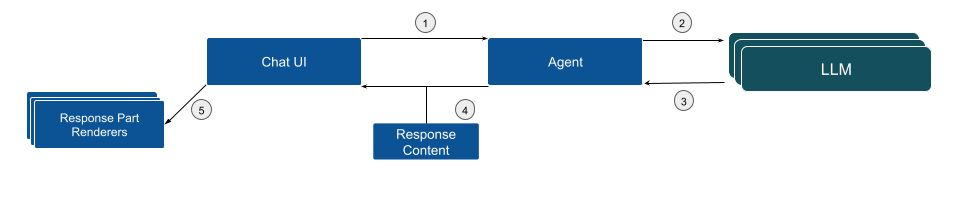
In the following, we will dive into the details on how to implement this flow.
Develop a Reliable Prompt
The first step to enable structured response parsing is developing a prompt that reliably returns the expected output. In this case, the output should include an executable ViRi charting command related to the user's question in JSON format. The response needs to be in a parsable format, allowing the system to detect the command and provide the user with the option to execute it.
An simplified example of such a prompt might look like the following (you can review the full prompt template here)
You are a service that helps users find charting commands to execute in ViRi.
You reply with stringified JSON Objects that tell the user which command to execute and its arguments, if any.

Example:
\`\`\`json
{
   "type": "viri-command",
   "commandId": "chart.createLineChart"
}
\`\`\`

Here are the known ViRi commands:

Begin List:
{{command-ids}}
End List
As described in the previous section the variable {{command-ids}} is dynamically populated with the list of available charting commands.
Parse the Response and Transform into Response Content
After receiving the LLM response, the next step is to parse it in the agent implementation and transform it into a response content that can then be processed by the Chat UI. In the following code example:
- The LLM response is parsed into a command object.
- The ViRi command corresponding to the parsed command ID is retrieved.
- A CommandChatResponseContentImpl object is created to wrap the command.
Example code:
const parsedCommand = JSON.parse(jsonString) as ParsedCommand;
const viriCommand = this.commandRegistry.getCommand(parsedCommand.commandId);
return new CommandChatResponseContentImpl(viriCommand);
Please note that a chat response can contain a list of response parts, allowing various UI components to be mixed with actionable response components.
Parse Parts of the Response into Different Response Contents
To simplify parsing an overall response from the LLM into different parts that you want to display with specific UI components, you can add so-called response content matchers. These matchers allow you to define a regular expression that matches a specific part of the response and then transform this part into a dedicated response content. This is especially useful if you want to display different parts of the response in different ways, e.g. as a highlighted code, buttons, etc.
In the following example code, we define a response content matcher that matches text within <question> elements in the response and transforms them into specific QuestionResponseContentImpl objects. You can review the full code in the AskAndContinueAgent API example.
In your chat agent, you can register a response content matcher like this:
@postConstruct()
addContentMatchers(): void {
    this.contentMatchers.push({
        start: /^<question>.*$/m,
        end: /^<\/question>$/m,
        contentFactory: (content: string, request: ChatRequestModelImpl) => {
            const question = content.replace(/^<question>\n|<\/question>$/g, '');
            const parsedQuestion = JSON.parse(question);
            return new QuestionResponseContentImpl(parsedQuestion.question, parsedQuestion.options, request, selectedOption => {
                this.handleAnswer(selectedOption, request);
            });
        }
    });
}
This matcher will be invoked by the common response parser if it finds occurrences of the start and end regular expressions in the response. The contentFactory function is then invoked to transform the matched content into a specific response content object.
Create and Register a Response Part Renderer
The final step is to display a button in the Chat UI to allow users to execute the command. This is done by creating a new Response Part Renderer. The renderer is registered to handle CommandChatResponseContent, ensuring that the Chat UI calls it whenever a corresponding content type is part of the response.
The following example code shows the corresponding response renderer, you can review the full code here.
canHandleMethod: Determines whether the renderer can handle the response part. If the response is of typeCommandChatResponseContent, it returns a positive value, indicating it can process the content.renderMethod: Displays a button if the command is enabled. If the command is not executable globally, a message is shown.onCommandMethod: Executes the command when the button is clicked.
canHandle(response: ChatResponseContent): number {
    if (isCommandChatResponseContent(response)) {
        return 10;
    }
    return -1;
}

render(response: CommandChatResponseContent): ReactNode {
    const isCommandEnabled = this.commandRegistry.isEnabled(response.command.id);
    return (
        isCommandEnabled ? (
            <button className='viri-button main' onClick={this.onCommand.bind(this)}>{response.command.label}</button>
        ) : (
            <div>The charting command has the id "{response.command.id}" but it is not executable globally from the Chat window.</div>
        )
    );
}

private onCommand(arg: AIChatCommandArguments): void {
    this.commandService.executeCommand(arg.command.id);
}
Finally, the custom response renderer needs to be registered:
bind(ChatResponsePartRenderer).to(CommandPartRenderer).inSingletonScope();
By following the steps outlined, you can transform an LLM response into custom and optionally actionable UI controls within ViRi AI. See the ViRi documentation on how the example looks integrated in a tool. This approach enables users to interact with the AI-powered Chat UI more efficiently, e.g. allowing executing charting commands directly from the suggestions provided.